








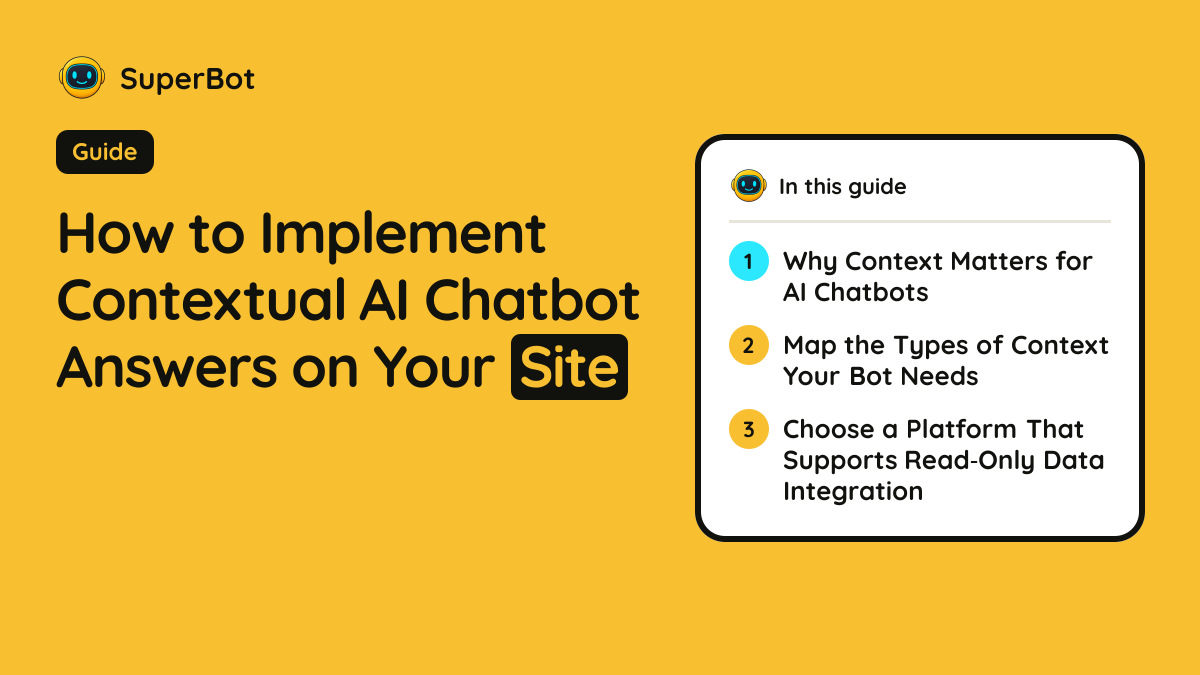
Why Context Matters for AI Chatbots
A chatbot that only repeats generic replies feels like a dead end for shoppers. When the bot can reference the exact product a visitor is looking at, check the status of an order, or pull the right help‑centre article, the conversation stays on track and the customer moves faster toward a purchase or resolution.
Contextual answers reduce:
* Back‑and‑forth clicks – the visitor doesn’t need to repeat the same information. * Escalation rates – agents receive fewer tickets that require manual clarification. * Cart abandonment – quick, relevant answers keep shoppers in the buying flow.
The good news is that most modern AI chat platforms let you feed the bot the data it needs and define when to use it. Below is a practical roadmap you can follow on any website—Shopify, Wix, WordPress, Squarespace, or a custom site—using a tool like SuperBot or a comparable AI solution.
1. Map the Types of Context Your Bot Needs
Start by listing the data sources that give meaning to a conversation. Typical categories for an e‑commerce store are:
| Context Type | Example Use | Where the Data Lives | |--------------|-------------|----------------------| | Product catalog | “What colors does this jacket come in?” | Shopify/WooCommerce product API, Wix product collection | | Inventory levels | “Is the size XL still in stock?” | Same product API, often a stock_quantity field | | Order status | “Where is my order #12345?” | Order API, read‑only access to order records | | Customer profile | “Do I qualify for free shipping?” | Customer account data, email address, loyalty tier | | Help‑centre articles | “How do I return a sweater?” | Knowledge‑base (e.g., Help Scout Docs, built‑in SuperBot articles) | | Live‑chat transcripts | “You said my refund will be processed tomorrow.” | Shared inbox or CRM where past chats are stored |
If you already have a CRM, ticketing system, or built‑in help centre, add it to the list. The more precise the map, the easier it is to configure the bot later.
2. Choose a Platform That Supports Read‑Only Data Integration
You need a chatbot that can read product, stock, and order information without the ability to write back (to avoid accidental changes). SuperBot, for example, reads store products, stock, and orders in read‑only mode, verifies order lookups against the customer’s email, and never writes to the store.
If you prefer another vendor, verify these points on their pricing or feature page:
* Ability to connect via API keys or built‑in integrations (Shopify, WooCommerce, Wix, etc.). * Read‑only permission model for order data. * No requirement to expose write credentials to the AI.
3. Set Up Secure API Access
a. Generate API credentials
* Shopify / WooCommerce – Create a private app or API token that can read products, variants, and orders. * Wix – Use the Wix Stores API with a read‑only token. * WordPress (WooCommerce) – Install the official SuperBot plugin from wordpress.org/plugins/superbot or another plugin that adds a REST endpoint.
b. Restrict scopes
Only enable the scopes you need: read_products, read_orders, read_customers. Do not grant write permissions.
c. Store credentials safely
Add the keys to your site’s environment variables or a secure secret manager. Never hard‑code them in JavaScript that runs in the browser.
4. Connect the Bot to Your Knowledge Base
A contextual bot must know where to pull help articles. Most platforms let you import or sync a knowledge base:
* SuperBot – Uses built‑in help‑centre articles and can capture leads into its CRM. * Help Scout – Connect via the API and map article IDs to intents.
If you maintain a static FAQ page, consider converting it to a structured format (JSON or Markdown) and uploading it to the bot’s “knowledge” section. Tag each article with keywords that match common user intents (e.g., “returns”, “shipping”, “size guide”).
5. Define Trigger Rules for Contextual Retrieval
Most AI chat platforms let you write simple rules or use low‑code “flows” that decide when to fetch external data. Here’s a typical pattern:
- Detect intent – The NLU model classifies the user’s message (e.g., *order_status*, *product_question*, *return_policy*).
- Check required entities – For *order_status*, you need an order number; for *product_question*, you need a product SKU or name.
- Call the appropriate API – Use a webhook or built‑in connector to fetch data.
- Compose the reply – Insert the fetched values into a response template.
Example: Order‑Status Flow
| Step | Action | Details | |------|--------|---------| | 1 | Intent detection | User says “Where’s my order 98765?” → *order_status* intent | | 2 | Entity extraction | Extract order number 98765 | | 3 | Verify email | Bot asks “Can you confirm the email on the order?” → user provides email | | 4 | API call | GET /orders/98765 with read‑only token | | 5 | Validate | Ensure the email returned matches the user’s input | | 6 | Response | “Your order #98765 is currently in transit and should arrive on Oct 30.” |
Most platforms let you test each step in a sandbox before going live.
6. Add Fallbacks and Human Handoff
Even with context, the bot may not have the answer. Configure:
* Fallback messages – “I’m not sure about that. Let me connect you to a human.” * Shared inbox – SuperBot provides a shared team inbox with full transcript and human handoff. * Lead capture – If the visitor is a potential high‑value customer, capture their email into the built‑in CRM for follow‑up.
Make sure the handoff preserves the conversation history so the agent doesn’t need to ask the same questions again.
7. Test Across Languages
If you serve an international audience, enable multilingual support. SuperBot works in 35 languages out of the box. Test a few key flows (product lookup, order status) in the top languages of your traffic and verify that date formats, currency symbols, and address conventions are correct.
8. Monitor Performance and Fill Knowledge Gaps
After launch, track these metrics (most platforms provide a dashboard):
* Resolution rate – Percentage of chats solved without human handoff. * CSAT – Customer satisfaction scores collected after each conversation. * Sentiment – Automated sentiment analysis to spot frustrated users. * Knowledge gaps – Articles or data points the bot failed to retrieve.
Use the analytics to prioritize updates: add missing FAQ entries, improve entity extraction patterns, or expand product attributes exposed via the API.
9. Iterate with Real Data
Every week, pull the top 10 unanswered or escalated queries. For each:
- Identify whether the missing context was a data source, a language issue, or a vague intent.
- Update the bot’s rule set or knowledge base.
- Retest the flow.
Over time the bot’s “knowledge gap” metric should shrink, and the human handoff rate will drop.
10. Scale to More Touchpoints
Once the core contextual chatbot works on your website, consider extending it to:
* Live chat widgets on product pages – Embed the same bot script on product detail pages for instant assistance. * Messaging apps – Connect the bot to WhatsApp, Facebook Messenger, or SMS using the same API credentials. * Email support – Some platforms let the AI draft replies to incoming support emails, pulling order data as needed.
Keep the same read‑only data approach to avoid accidental changes across channels.
Checklist for a Contextual AI Chatbot
| ✅ | Action | |----|--------| | 1 | List all data sources needed for context (products, inventory, orders, customer profile, help articles). | | 2 | Choose a chatbot platform that supports read‑only API integration (e.g., SuperBot). | | 3 | Generate API keys with only read permissions and store them securely. | | 4 | Sync your knowledge base or import FAQs into the bot. | | 5 | Build intent detection and entity extraction rules for each use case. | | 6 | Create webhook or connector flows that fetch data when needed. | | 7 | Design fallback messages and enable human handoff with a shared inbox. | | 8 | Test flows in all supported languages and adjust formatting. | | 9 | Launch and monitor resolution rate, CSAT, sentiment, and knowledge gaps. | | 10 | Review top escalations weekly, update rules, and expand to other channels. |
What to do this week
- Map context: Write down every piece of information the bot should be able to reference.
- Set up read‑only API: Create a token for your store’s product and order data.
- Install the bot: Add the SuperBot (or chosen) snippet to your site and connect the knowledge base.
- Create one flow: Build the order‑status conversation, test it with a real order number, and verify email matching.
Follow these steps, and you’ll turn a generic chatbot into a smart, context‑aware assistant that keeps shoppers moving forward.