Article:
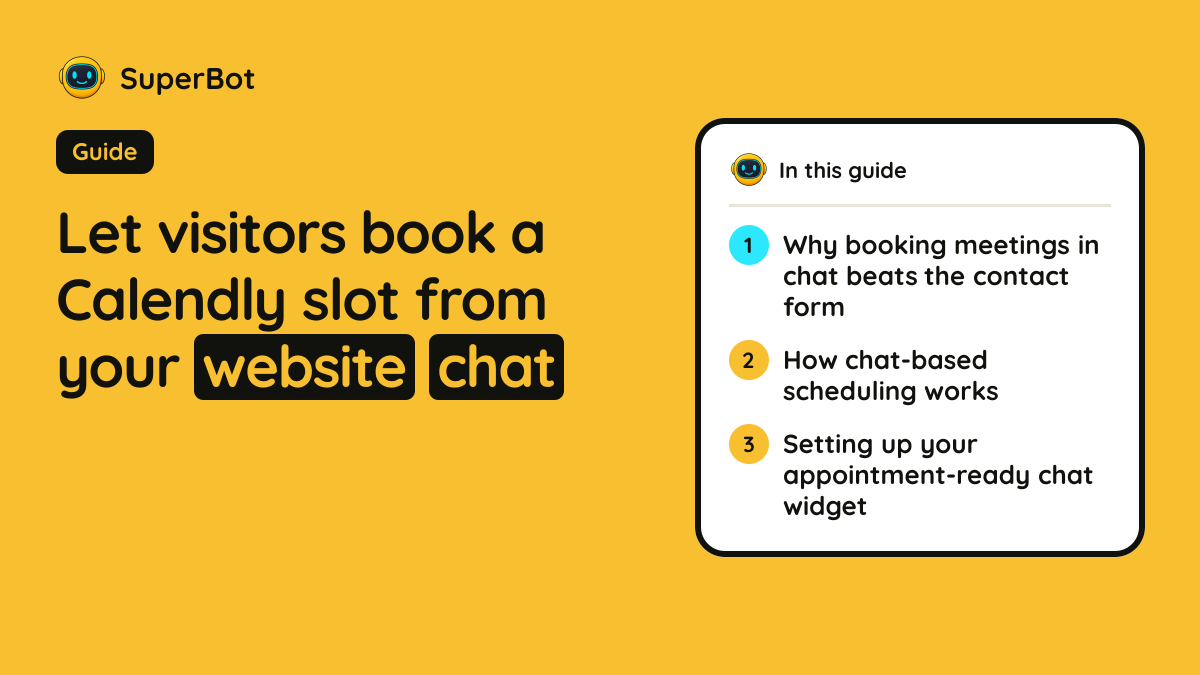
Why booking meetings in chat beats the contact form
When a prospective client visits your website with a pre-sales question, every minute counts. If they have to fill out a static contact form and wait for a reply, your conversion rate drops. By the time you email them back, they may have already bought from a competitor.
Adding an interactive booking flow to your website changes that dynamic. Instead of asking visitors to navigate to a separate page, find a calendar link, and pick a time, you can embed appointment scheduling directly inside your chat widget.
When a visitor asks about your services, pricing, or onboarding, the AI agent can answer their questions and instantly offer a direct booking link via Calendly or Cal.com. The visitor stays in the conversation flow, picks a time slot, and confirms the meeting without leaving the page.
Here is how to set up chat-based scheduling so you can capture leads, qualify them automatically, and fill your calendar while you sleep.
How chat-based scheduling works
Traditional website chat is a dead-end message box. A visitor leaves a question, and a support rep reads it hours later. Modern AI customer support agents do much more than answer FAQ questions—they act as active sales and scheduling assistants.
When you connect your scheduling tool to an AI website agent, the interaction follows a simple loop:
- The visitor asks a question. They might ask, "Can we schedule a consultation to discuss enterprise pricing?" or "Do you have any openings this week for a demo?"
- The AI checks your knowledge base. The agent reads your business content, verifies your product details, and responds instantly with accurate information.
- The AI offers the calendar link. Instead of routing the conversation to a crowded support queue, the agent drops a direct Calendly or Cal.com booking link into the chat window.
- The visitor books a slot. The customer selects a time that works for them, the appointment is logged, and the conversation is securely captured.
This setup removes friction. There is no email ping-pong, no waiting for business hours, and no manual back-and-forth to find an open slot.
Setting up your appointment-ready chat widget
To get this workflow running on your website, you need three elements: an AI chatbot trained on your business content, a calendar scheduling tool, and a shared team inbox for human handoff when complex questions arise.
Here is a step-by-step approach to setting it up properly.
Step 1: Train your AI on your services and FAQs
An AI agent is only as good as the information it reads. Before you start dropping calendar links into chats, make sure your agent understands what you sell, how much it costs, and who your ideal customer is.
Connect your website URLs, product pages, and help documents to your chatbot platform. If you use SuperBot, the AI agent trains directly on your own content and answers visitor questions with citations. This ensures the bot never makes up features or promises availability you cannot deliver.
Step 2: Connect your scheduling tool
Next, link your appointment scheduler. Most modern small businesses and agencies use Calendly or Cal.com for discovery calls, demos, and consultations.
Configure your scheduling link so that it points to a specific event type—such as a 15-minute introductory call or a 30-minute product demo. Ensure your availability rules are up to date so the visitor only sees times when you are actually free.
Step 3: Define your qualification rules
Not every website visitor is ready to book a meeting. If a visitor asks a basic shipping question, you do not want the bot pushing a 30-minute sales call.
Program your agent to recognize high-intent phrases. Keywords like *pricing*, *demo*, *consultation*, *enterprise*, *setup*, and *custom quote* should trigger the AI to offer the booking link. For standard support questions—such as order tracking or return policies—the agent should handle the inquiry directly without pushing a meeting.
For e-commerce stores, tools like SuperBot read your products, stock, and orders in read-only mode. They verify order lookups against the customer's email securely, ensuring customers get immediate shipping updates without clogging your team's schedule with trivial questions.
Choosing the right widget for your tech stack
Different website builders and e-commerce platforms handle chat widgets in different ways. Before committing to a chat platform, make sure it integrates cleanly with your existing site structure:
* Shopify, Wix, WordPress, and WooCommerce: Look for platforms with native plugins or official directories (for instance, WordPress has an official plugin directory at wordpress.org/plugins/superbot). * Webflow, Squarespace, and Custom Sites: Ensure the chat tool provides a simple embed snippet that you can paste into your site header or code injection settings (for Squarespace, check that your plan supports Code Injection, usually Business plan or higher). * Square Online and Adobe Commerce: Confirm whether the platform supports standard JavaScript snippets or requires a dedicated integration.
If you are evaluating chat software, pricing structures vary wildly across the market. Many helpdesk and chat vendors charge strictly per human seat, which can get expensive as your team grows. For example, Intercom charges annual seat prices starting at Essential ($29 per agent a month billed annually), Advanced ($85), and Expert ($132), plus usage fees for their Fin AI agent ($0.99 per outcome). Zendesk offers Support Team at $19 per agent a month, Suite Team at $55, and Suite Professional at $115, billed annually. Freshdesk ranges from Growth ($19) to Pro ($55) and Enterprise ($89) per agent a month billed annually.
If you want predictable costs without paying extra for every single team member who logs in, look for platforms that do not penalize you for adding staff. For instance, SuperBot includes unlimited team members on every plan, with pricing scaling by conversation volume rather than seat count: Free at $0 (200 conversations/month, no card), Starter at $25/month (2,000 conversations), and Pro at $60/month (unlimited conversations), with yearly billing saving you 20%.
Handling the handoff: When AI meets a human
Even with a well-configured calendar link, some visitors will have complex questions that require human intervention. A robust chat setup must include a shared team inbox with human handoff and full transcripts.
When a visitor wants to speak with a real person, the chat widget should seamlessly transfer the conversation to your team inbox. Your staff can review the full chat history, see which pages the visitor looked at, and step in without making the customer repeat themselves.
Furthermore, make sure your chat widget includes lead capture into a built-in CRM. Even if a visitor does not book a Calendly slot immediately, collecting their email address and inquiry details allows your sales team to follow up later.
Finally, consider language support. If your website attracts international traffic, your chat widget needs to handle multiple languages. SuperBot supports 35 languages out of the box, ensuring that non-English speakers can read your content, ask questions, and receive accurate responses in their native language.
What to do this week
- Audit your current contact flow: Check how many inquiries you receive via static contact forms versus direct chats, and measure your average response time.
- Set up a dedicated booking link: Create a clean, distraction-free event type in Calendly or Cal.com specifically for website traffic.
- Install an AI chat widget: Set up SuperBot on your website to train on your existing product and service pages automatically.
- Test the scheduling prompt: Run a test conversation on your live site to verify that the AI successfully recognizes high-intent buying signals and surfaces your calendar link without friction.